1. Quick overview
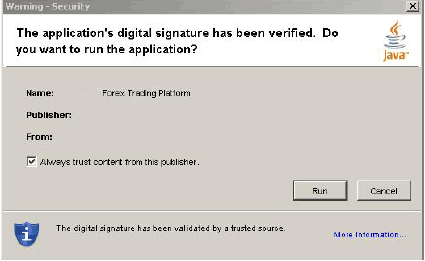
After the first login, the trader is asked to trust the Amerex Java Platform. Please check the authenticity of the signature made by: Verisign Inc. If the verification is correct (like described on the screenshot below), press Run.
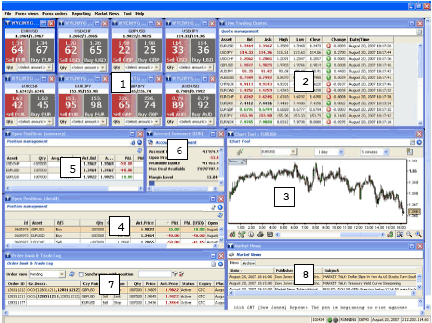
1. WYCIWYG Trading Boxes: one box for each currency pair. View real time bid/ask rates. Click on the BUY or SELL to execute a trade.
2. Live Trading Quote: view real time list of current bid/ask, today's high/low, etc.
3. Chart Tool: real time charts on all currency-pairs. Many customizable technical analysis tools are accessible. The chapter 5 contains all basic steps to master the ProRealTime charting tool.
4. Position List (detail): real time summary view of all open positions. Place orders linked to the selected position or close selected position.
5. Position List (summary): real time, summary view of all open positions consolidated by currency-pair. Close selected position.
6. Margin Summary: view real time information about margin, P&L and account balances.
7. Order book & Trade log: view real time information of all open trades, as well as trades that have been closed out during the selected period. Create new, cancel or modify orders.
8. Market News: view containing the latest news published.
This view is composed of a folder containing the latest news published. The second folder contains archives which provide specific searching criteria to retrieve any kind of published news.

Four kinds of statements are available in the Amerex trading console: "Account Statement", "Account Summary", "Transaction Summary", "Today's Activity".
The "Account Statement" returns the balance of the trading account, the list of all open positions and the list of pending orders.
The "Account Summary" displays the all cash movements on the account and details the origin of such movements: type of transaction (forex trade, deposit/withdraw, overnight swap, etc.). In the example of a P&L paid, the report contains the information of the entry and close price, the (historical) exchange rate between the currency of the P&L and the reference currency of the account.
The "Transaction Summary" returns the list of all transactions grouped by transaction-type performed on that trading-account. These order-types include Deposit/Withdraw, Forex trades, Overnight Swap (Rollovers-) operations, etc…
Both reports "Account Summary" and "Transaction Summary" can be generated by selecting a period of activity. By default the current month is selected.
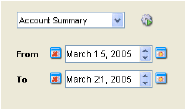
The reports "Today's Activity" is a derivation of both "Transaction Summary" and "Account Summary" but focused on today.

2. Trade Execution
A market order (Spot) is an order to buy or sell at the current market price. Customers using Amerex's online trading platform click on the buy or sell button after having specified their deal size. The execution of the order is instantaneous; this means that the price seen at the exact time of the click will be given to the customer.
The most common way to place a market order (Spot) is to use the WYCIWYG box. The real time bid/ask prices appear in the trading box for each currency-pair. A client has just to click on the current bid or ask offer for executing the trade.
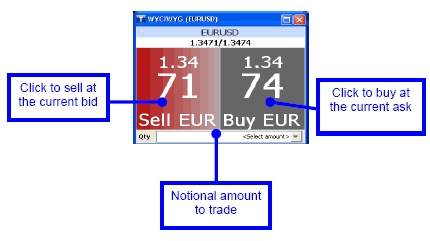
WYCIWYG (What you click is what you get) embodies the concept of total price transparency and permits the retail fx trader to shed the large hidden costs which the great majority of forex dealerships charge their customers in the form of slippage. “What you click is what you get†means that when a customer clicks on a price, that price is “captured†as the execution price and therefore even if the market moves subsequently, the customer still gets the price he chose, always. WYCIWYG execution erases all slippage from trading activities.
WYCIWYG also applies for limit and stop orders. The price you set is the price at which the order will be executed, always. The first step to pass an order is to select an amount from the proposed drop-down list. The combo-box is editable, so that the user can edit its desired amount, which must a multiple of the lot.
The second step is to click one of the prices to sell or buy at the proposed price.
A green box confirms the deal was executed. A red box will contain the reason for which the trade has not been executed.

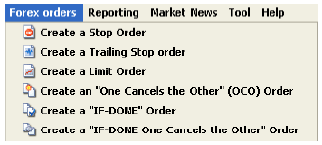
Two possibilities are offered to the client to place an entry order.
The client choose the desired type of order in the menu "Forex orders"
or by right-clicking the mouse in the view "Order List"
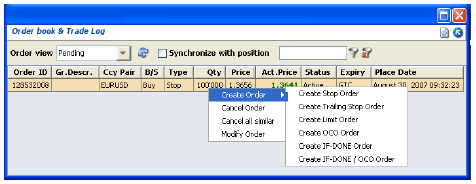
The description of each order-type is presented in the next section.
A limit order is an order placed to buy or sell at a certain price. The order essentially contains two variables, price and duration. The trader specifies the price at which he wishes to buy/sell a certain currency pair and also specifies the Expiration Type that the order should remain active.
GTC (Good till cancelled): A GTC order remains active in the market until the trader decides to cancel it. The dealer will not cancel the order at any time therefore it is the
GFD (Good for the day): A GFD order remains active in the market until the end of the trading day. Since foreign exchange is an ongoing market the end of day must be a set hour. For Amerex the end of the trading day occurs at exactly 24:00 CET or 23:00 GMT.
Note here that our trading system will only validate limit buy order with a limit price under the actual market price. For sell order, the limit should be above the market price. If these rules are not respected, the Amerex trading system will reject that order and return an error-message to the user, telling him in which direction it makes sense to trade. We have an internal policy which rejects all limit orders which are not placed at minimum distance of 2 times the spread relative to the actual price.

A stop order is an order to buy or sell when a definite price is reached, either above (on a buy) or below (on a sell) the price that prevailed when the order was given. A stop order to buy, always at a higher price than the current market price, is usually designed to protect a profit or limit a loss on a short-sale. A stop order to sell, always at a lower price than the current market price, is usually designed to protect a profit or limit a loss on a position already purchased at a higher price.
From the trader point of view, a buy stop order is placed when the trader believes that if the price moves upwards and reach a certain limit, the price will continue its trends and move further upwards. In the case of a sell stop order, the trader believes that if the price moves downwards and reach a certain limit, the price will continue its trends and move further to moves downwards. The main difference with a limit order is that the trader believes the opposite behavior once the limit price has been reached.
The order contains the same two variables, Amount and Expiration Type. The same variations are used to specify the expiration as in limit orders (GTC and GFD). Let's take the following example:
Example: Trader x buys EURUSD 100'000 @ 0.9340, he's expecting a 60 to 70 pips move in the market but he wants to protect himself in case he has overestimated the potential strength of the Euro. He knows that 0.9310 is a strong support level so he places a stop loss order to sell at that level. Trader x has limited his risk on this particular trade to 30 pips or USD 300.
Another usage of a stop order is when a trader is expecting a price breakout to occur and wishes to grasp the opportunity to 'ride' the breakout. In this case a trade will place an order to buy or sell 'on stop'. To illustrate the logic behind this let's review the following scenario:
Example: Trader x sees EURUSD breaking through the 1.3090 resistance level. He believes that if this happens, the price of EURUSD could be headed to 1.3150 and over. At this point the market is at 1.3050 so trader x places an order to initiate a buying position of 500'000 at 1.3090 'on stop'.
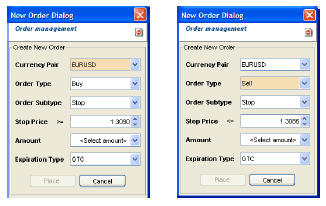
Note here that the Amerex trading system will only validate stop buy order with a limit price above the actual market price. For sell order, the stop limit price should be under the market price. When these rules are not respected, the Amerex trading system will reject that order and return an error-message to the user, telling him in which direction it makes sense to trade.
We have an internal policy which rejects all orders which are not placed at minimum distance of 2 times the spread relative to the actual price.
Placing trailing stop orders is similar to a normal stop order with the difference that additional order parameters are prompted to specify Trailing Points, which is the number of pips from the current rate at which you want the stop loss order to be executed. The advantage of a trailing stop is that the order automatically “trails” The rate if the position moves in your favor, offering the potential for greater gains while still guarding against price declines.
In this example, the live rate is 1.2951 and the Trailing Points are set to 40. The sell stop order will be filled if EURUSD bid reaches 1.2911 (live rate - 40 pips). If EURUSD moves in your favor, e.g. to 1.2995, the stop order will automatically adjust to 1.2955 - always 40 pips from the live rate.
Technically speaking, the only difference with a normal stop order, is that the stop price changes as the rates moves in your favor.
We have an internal policy which rejects all orders which are not placed at minimum distance of 2 times the spread relative to the actual price.
At this level, we will present the use of related trade orders to link orders together to create more complex trading strategies. OCO (order cancels others) and IF DONE orders (also known as slave orders) are typically used in that context.
An OCO order is a mixture of one limit- and one stop orders. 2 orders with price and duration variable are placed above and below the current price. When one of the orders is executed the other order is cancelled. To illustrate how an OCO order works let's take the following example: The price of USDJPY is 114.41. Trader x wants to either sell 100'000 at 114.30 below the resistance level in anticipation of a breakout or initiate a selling position if the price reach 114.51.
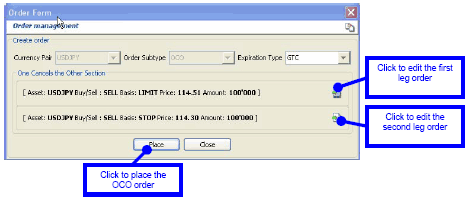
We have an internal policy which rejects all limit/stop orders which are not placed at minimum distance of 2 times the spread relative to the actual price.
Two-legged order whereby the second single order is placed only upon execution of the first single order.
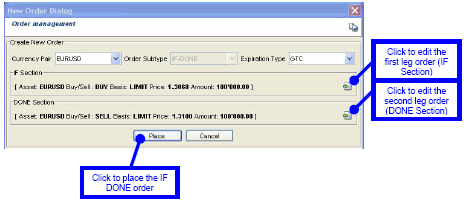
In this example, the trader believes that the EURUSD is going down but will reach a resistance at 1.3060. At that point, the trader thinks that the market will rebound and that's why he planed to place a sell order at 1.3100.
This kind of order allows the trader to execute its strategy without being all the time behind his computer.
We have an internal policy which rejects all limit/stop orders which are not at minimum distance of 2 times the spread. In the case of an IF DONE order, the check in the DONE section is made relative to the price in the IF section.
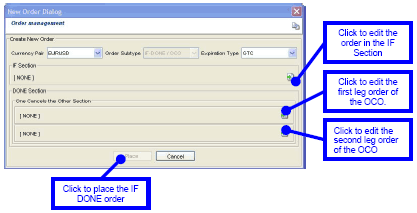
This is a variation of the IF DONE order whereby an OCO is placed after the order in the IF section has been successfully executed.
Each pending order can be canceled or edited in order to modify some parameters. From the view "Order book & Trade Log", right click on the order and select the appropriate action.
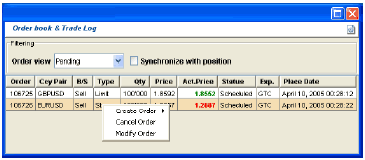
By right-clicking on "Cancel Order", the trader will be prompted to confirm the cancellation of the trade. The pending order is then remove from the order queue and will no more be executed. The following confirmation message is displayed to the trader:

By right-clicking on "Modify Order", the appropriate order-editor is displayed and all parameters can be modified.
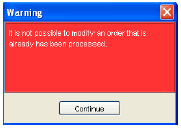
Press on the "Place" button to validate the modifications and replace the old order with the new one in the system. Attention, as long as the order as not been (re-)placed, the old one is still valid. In the case of replacing an order that has been executed in the meanwhile by the system, the Amerex Trading-system returns the following error:
3. Open Positions
A position is called ‘open' if it has not been offset by an equal and opposite deal. An open position is defined primary by quantity of the underlying instrument (or asset) and the price at which it was opened.
An open position can be long if the trader bought the underlying asset or short if he sold that position. Note that, an asset can be sold before being bought.
A long or short position can be closed or reduced but not increased. If a client wants to increase its exposure on an instrument, a new position will be created.
On Amerex trading platforms, each open position is displayed with corresponding unrealized Profit & Loss (or open P&L).
Normally, all positions on a specific instrument are opened in the same direction (long or short). For example a client can only have long positions on EURUSD, but not simultaneously long and short positions. If the client decides to place a trade in the opposite direction than the actual exposure, some open positions are getting closed or reduced. If no instruction has been given, the oldest open positions are getting closed first, following the FIFO (First In First Out) rule.
FIFO rule is not followed when an order is linked to a given open position. When a linked order is executed, its linked position will be closes or reduced.
One of the specificity of the Amerex Java Trading Platform is the possibility to manage many open positions in the same currency pair.

A new (open) position is created when the execution of an order increases the exposure on the traded currency pair. In the example above, many buy orders have been executed on the GBPUSD. Each of these orders has generated a new position. The calculation of the P&L is specific to each position and is relative to the entry-price of that position.
When the execution of an order reduces the exposure on the traded currency-pair; the FIFO (First In First Out) rule will apply, and the oldest position on the traded currency-pair is closed or reduced. If the amount of the order is bigger than the amount of the closed position, the next older position is reduced or closed. This process will continue as long as the entire amount of the order has not been booked. If all positions are closed and there is still an available amount which has not been booked; it means that the order reverses the exposure from long to short (or from short to long), a new position with the residual amount will be created in the opposite direction.
The section Linked order describes how to close a specific position among all positions listed in this view.
A consolidated view of all positions can be displayed by selecting the menu-item ‘Open Positions (summary)’ in the ‘Forex View’ menu. This view shows exactly one entry for each currency-pair. The average open price and the p&l (profit and loss) are calculated for each consolidated position.
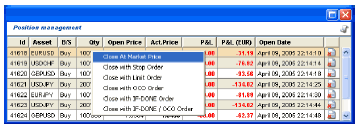
Orders linked to an open position are called Linked orders. It means that the execution of linked orders will only affect the linked position by closing it. Linked orders are easily configured by the client. The client just has to select a position in the list of all open positions by right-clicking on it and selecting the appropriate order type to close that position.
The margin analysis window provides traders with real time information about their trading account.

Account Balance: The quantity of money resulting from the sum of all deposits and realized gains less all withdrawals, realized losses, costs and fees which has been booked on the money account
Unrealized Gain/Loss: The net P&L of all open positions, calculated at the current rate. This amount changes as the rates fluctuate.
Margin Balance: Represents Account Balance plus the sum total of current unrealized gains/losses.
Max. Deal Available: The maximum position expressed in the reference currency of the client that the margin balance will allow to trade. At 1% margin, this represents 100x the current margin balance, if no position is open.
Margin Left: represents the ratio between the Margin Balance and the absolute sum of all open position. This ratio is expressed in percent.
4. P&L Calculation
Gain or loss resulting from the closing of position. The P&L calculation uses the formula:
(Closing price - purchase price) x (position amount).
For example, a client buys 100’000 EURUSD at 1.3400 and later he closes at 1.3410.
The generated P&L is:
(1.3410 - 1.3400) x 100’000 = 100 USD
Note that if the account is expressed in EUR, the amount will be credited after an exchange rate calculated with the mid-price between the bid- and ask- price at closing.
In the above example, if we consider that the client trades on 2 pips, the bid-price is 1.3410 and the ask-price is 1.3412. The 100 USD are converted into EUR by using the following mid-rate: (1.3412 - 1.3410)/2 = 1.3411; the realized P&L is: 100 USD/1.3411= 74.5656 EUR.
Each open position has a corresponding unrealized P&L (or open P&L) which is calculated using the formula:
(Current price - purchase price) x (position amount) expressed in the counter currency of the traded currency-pair.
5. Trading margins
A margin deposit is not, as many traditional traders suggest, the payment in cash for purchasing market shares. A margin is in fact a guarantee or a trust deposit, providing protection from losses during a deal. It allows traders to open positions on amounts that greatly exceed their account limits and so increase their buying power. Amerex offers a 1% margin (or 1:100 leverage), which means you can control 100 times your deposit in the real market.
If the margin of the account falls below the prescribed limit (1%) then all your positions will be closed automatically. Using this system, the client’s account cannot go overdrawn even under volatile, fast-changing market conditions.
The formula for calculating margins is as follows:
Margin=actual balance/exposure
actual balance = balance + open P&L
Exposure=
sum (open positions)
The actual balance and the open P&L must be expressed in the same currency (for example USD).
Here is an example:
Let’s consider a client with 10’000 USD in his account with an open position of +500’000 EURUSD opened at 1.3594 quoted actually at 1.3600.
The actual open P&L is 300 USD.
The actual
balance is: 10’000 + 300 USD = 10’300 USD.
The exposure is equal to:
exposure = 1x500'000 EURUSD-->500'000 EUR x 1.36 = 680'000 USD
Margin = actual_balance / exposure=10300/680000 = 0.015147
-> 1.51%
6. Overnight positions
Traditionally inter-bank foreign exchange transactions are settled on pre-arranged value dates. In other words if a trader sells 1 million EUR against USD spot on Wednesday, that means he must deliver the value of 1 million Euros on Friday in order to receive the USD equivalent sum based on the exchange rate agreed upon. (settlement dates in the spot market are valued on a 2 working day basis).
Amerex adopts a method of operation by which there are no value dates on any operations and no close out and re-opening of open positions at close of business. We call this process a synthetic spot transaction. This results in a simple one line transaction on the customer's transaction statement instead of an extremely complicated multi-entry statement which is generally unintelligable for anyone not very well aquainted with interbank transactional dynamics.
Amerex applies a cost of carry on behalf of the market or the customer on open positions held overnight. This overnight cost of carry is presented as a simple flat fee either paid or charged on a customer's account. This process makes for extremely simple statements and greatly increased executional transparency since we do not modify the original price of the position entered into by the customer.
Please note that the "total open position" for precious metals is the equivalent dollarised value. Example 200 ounces of gold is worth about 133'000 USD (31/07/07 rates).
Overnight costs are credited & debited on any positions held after 24:00 CET every day of the week.
Those fees for credit and debit can be found at the following URL, which is daily updated accordingly to market situations:
7. Charts
The following presentation will help you understand
the basics of ITCharts Compact in simply a few minutes.
Please check that you understand each of the steps so as
to make a pleasant experience of ITCharts
Compact.
ITCharts Compact can be fully customizable:
change colors, style, scale type, add indicators, switch
indicators, change indicators parameters, make
comparisons between stocks, resize indicators
windows.
Here are some examples of customization:
Let's begin with a 3 month closing line view of Alcatel without any indicators.
Let's change from a closing line view to a candlesticks view :
There are actually two possibilities: either right-click on the closing Alcatel line and select "Properties Price" or left-click on the tool outlined in red below. Both launch the "Properties Price" window.

Then click on the "style" drop-down menu and choose "Candle".
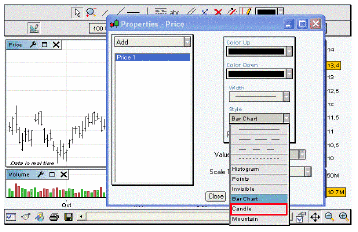
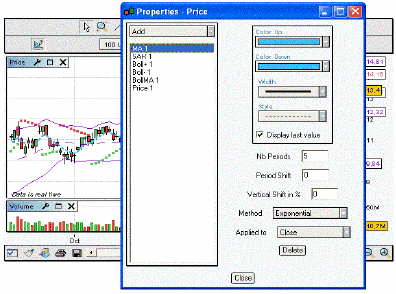
Now, let's introduce a 5 days moving average, 20 days Bollinger and standard Parab SAR on the Alcatel candlestick chart.Launch the "Properties Price" window and click at "Add" drop-down menu to include them one by one.
Make sure you have on the left side of the "Properties Price" window : MA 1 ; SAR 1 and ( Boll+ 1 + Boll- 1 BollMA 1).
Click on MA1 and select "Nb Periods" 5. Please note that you could change other settings of the MA depending on your needs. Here is an instance with a bigger width, a blue color and a Exponential Method :
Note that you can resize the horizontal scale by clicking on the left button of the mouse in the red rectangle outlined below, holding down left button and moving the mouse to the left or to the right. You can also resize the vertical scale by clicking on the left button of the mouse in the blue rectangle outlined below, holding down left button and moving the mouse upwards or downwards.

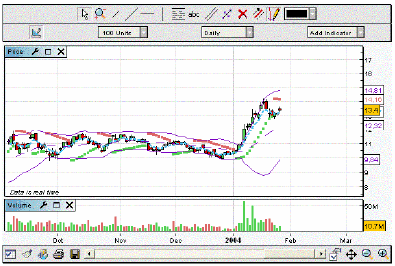
Note that you can come back to the optimized view by
clicking on the icon 
Let's introduce a 12 26 9 MACD and a 14 days Relative Strength Index.
Left click on the "Add Indicator" drop-down menu that is at the top right position of the charting window, select MACD first and then select Relative Strength Index. Let's change MACD histogram to a two lines MACD
Click on the tool outlined below to change the properties of the MACD. Select MACD-Signal 1, then click on "Style" drop-down menu and select "Invisible". Then, select Signal 1, then click on "Style" drop-down menu and select "------". Finally, select MACD 1, then click on "Style" drop-down menu and select "------".

Note that you can hide the indicators titles by unchecking "Always display Indicator Titles in charts" on the "Preferences" Menu
Let's move the "Relative Strength Index" window above the MACD window.
Left click on the "Relative Strength Index" title, outlined below in red, hold down and move the mouse upwards until you see the rectangle outlined in blue.

Note that you can also enlarge the "Relative Strength Index" window by left clicking on the white blank between "Price" window and "Relative Strength Index" window, holding down and moving the mouse upwards.
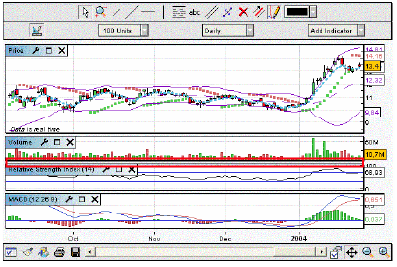

You can define two different parameters as regarding the quantity of quotes to load ("Duration") and the timescale ("View") for the charts you are viewing.

Duration : selection of the number of quotes loaded This option is available in both Intraday and End of Day mode. It defines the quantity of data you wish to load. For instance, if you wish to have 2 years of quotations loaded into your software, you should select "2 Years" in the drop-down menu named "Duration". Changing the chartered stock will not affect the selection in terms of the duration option : in the same example, if you have loaded 2 years of historical data for a stock, say Vodafone, then switching for another stock, say Microsoft, will load 2 years of data. The time to load the data therefore directly depends on the duration option you have chosen : 1 day of quotations will obviously take less time to load than 5 years of quotations. Note that you can also select the quantity of quotes to load in terms of "units". One unit corresponds to one trading day. 50 units therefore correspond to 50 trading days or 10 weeks of quotations.
Tip : we advise you to create at least 2 templates (please refer to the corresponding section). The first template could use few data and will hence load quickly. The second one could use more data to make deeper analysis.
Timescale : representation of each candlestick or bar chart Changing the timescale resolution will directly affect the meaning of each candlestick (or bar chart, or any other dot as chosen in the 'Style' drop-down menu in the 'My Indicators' menu). The timescale resolution defines the number of time units which one candlestick contains. For instance, each candlestick will represent 5 minutes of trading orders if you select "5 minutes" in the drop-down menu named "View". Note that you have the choice between minutes, hours, daily, weekly, monthly and yearly resolution. The tick by tick option is a new functionality, allowing you to visualize quotes instantly.
Calculation method : in weekly representation for instance, the open, high, low, close prices are respectively the Monday opening, the highest, the lowest and the Friday close of each week. The volume in this mode is the sum of the volumes of the 5 trading days of each week.
Bear in mind that changing timescale resolution affects all graphs, indicators and trendlines.
A. Cursor Mode (Default Mode)
The icon  corresponds to the Cursor Standard Mode, which is
selected by default. Click on the left button of the
mouse wherever on the charts, hold down and move your
cursor to move the charts. It can be helpfull when you
want to display some future.
corresponds to the Cursor Standard Mode, which is
selected by default. Click on the left button of the
mouse wherever on the charts, hold down and move your
cursor to move the charts. It can be helpfull when you
want to display some future.
B. Zooming into the chart
The icon  is the zoom button. Click on the left button of the
mouse to set the first date of the time-period on which
you wish to zoom in. Move the mouse rightwards and click
again on the left button to set the second date. Note
that on a zoomed view, you can use the horizontal scroll
bar at the bottom of the chart to see quotes from other
dates with the same zoomed view.
is the zoom button. Click on the left button of the
mouse to set the first date of the time-period on which
you wish to zoom in. Move the mouse rightwards and click
again on the left button to set the second date. Note
that on a zoomed view, you can use the horizontal scroll
bar at the bottom of the chart to see quotes from other
dates with the same zoomed view.
C. Drawing a segment or a line
The icon  representing a segment allows you to draw segments.
Click on the left button of the mouse to define the
first point of your segment. Then move the mouse cursor
and click again on the left button to define the second
point of the segment. The segment will be consequently
drawn.
representing a segment allows you to draw segments.
Click on the left button of the mouse to define the
first point of your segment. Then move the mouse cursor
and click again on the left button to define the second
point of the segment. The segment will be consequently
drawn.
The icon  representing a longer segment than the previous icon
allows you to draw lines. The method to draw lines is
similar to the method of segment drawing, clicking on
the left button of your mouse to successively define two
points by which the line should go through.
representing a longer segment than the previous icon
allows you to draw lines. The method to draw lines is
similar to the method of segment drawing, clicking on
the left button of your mouse to successively define two
points by which the line should go through.
The icon  still allows you to draw a line, but the drawn line will
this time be horizontal.
still allows you to draw a line, but the drawn line will
this time be horizontal.
The icon  allows you to draw a vertical line.
D. Drawing Fibonacci lines
Select the Fibonacci levels iconand click with the left button on two points in the chart to define the two extreme points of the Fibonacci
Levels  . A
series of horizontal lines are drawn at the Fibonacci
levels of 0.0%, 23.6%, 38.2%, 50%, 61.8% and 100% of the
trendline. Fibonacci levels can be customized using the
"Edit and Configure the object characteristics"
feature.
. A
series of horizontal lines are drawn at the Fibonacci
levels of 0.0%, 23.6%, 38.2%, 50%, 61.8% and 100% of the
trendline. Fibonacci levels can be customized using the
"Edit and Configure the object characteristics"
feature.
E. Typing text
Clicking on the icon  allows you to add
text on the charts. Once the icon is pressed down, you
can click anywhere on the charts to type your text. A
window will automatically open, allowing you to select
the text's font, size, style and color. Click on OK to
confirm your choice. Bear in mind that you can modify
the place in which the text is situated (refer to
paragraph H) and the style options of the text (refer to
paragraph J).
allows you to add
text on the charts. Once the icon is pressed down, you
can click anywhere on the charts to type your text. A
window will automatically open, allowing you to select
the text's font, size, style and color. Click on OK to
confirm your choice. Bear in mind that you can modify
the place in which the text is situated (refer to
paragraph H) and the style options of the text (refer to
paragraph J).
F. Inserting comments to your studies
The icon  pressed on, a frame opens beneath the charts, allowing
you to type in your comments for the loaded stock.
Clicking again on the icon will only hide this frame
without deleting your comments.
pressed on, a frame opens beneath the charts, allowing
you to type in your comments for the loaded stock.
Clicking again on the icon will only hide this frame
without deleting your comments.
F. Copying an object
The icon  represents two parallel lines. This button allows you
indeed to make a copy of any line, but also of any text
element on your chart. Simply click on the object to
copy and click anywhere else on the chart to paste the
new object. Notice that when you approach an object,
this object turns to light blue, indicating that you can
already click with your left mouse button to select it ;
it thus prevents you from having to aim precisely on the
object, giving you a wider area in which to click.
represents two parallel lines. This button allows you
indeed to make a copy of any line, but also of any text
element on your chart. Simply click on the object to
copy and click anywhere else on the chart to paste the
new object. Notice that when you approach an object,
this object turns to light blue, indicating that you can
already click with your left mouse button to select it ;
it thus prevents you from having to aim precisely on the
object, giving you a wider area in which to click.
G. Moving an object
The button  is very similar
to the previous one, in the sense that instead of
copying an object, the same procedure will move any
object you have selected. This feature is very much like
the 'cut and paste' function in wordprocessing
softwares.
is very similar
to the previous one, in the sense that instead of
copying an object, the same procedure will move any
object you have selected. This feature is very much like
the 'cut and paste' function in wordprocessing
softwares.
H. Deleting an object
Clicking on this icon  and then clicking
on any object (text or line) will delete it. Note again
that when you approach an object, this object turns to
light blue, indicating that you can already click with
your left mouse button to delete it.
and then clicking
on any object (text or line) will delete it. Note again
that when you approach an object, this object turns to
light blue, indicating that you can already click with
your left mouse button to delete it.
I. Changing the options of an object
The icon  allows you to change the options of an object, whether
it be a text element or a line. Click on the object to
modify, and a window opens to let you modify the
characteristics of this object : style, font, size and
colour for text, width, colour, style and limits for
lines.
allows you to change the options of an object, whether
it be a text element or a line. Click on the object to
modify, and a window opens to let you modify the
characteristics of this object : style, font, size and
colour for text, width, colour, style and limits for
lines.
J. Hiding texts and lines
Activating the button  hides all the
objects (texts and lines) from your charts without
deleting them. Click back on this button to see them
again. Note that you cannot insert texts nor draw lines
while activating the hide-command. In fact, the
hide-command being activated, most of the other drawing
buttons above appear shaded, being inactive.
hides all the
objects (texts and lines) from your charts without
deleting them. Click back on this button to see them
again. Note that you cannot insert texts nor draw lines
while activating the hide-command. In fact, the
hide-command being activated, most of the other drawing
buttons above appear shaded, being inactive.
 Click on
this icon to change the color. Thus, when you draw it
very useful to draw support and resistance with
different colors.
Click on
this icon to change the color. Thus, when you draw it
very useful to draw support and resistance with
different colors.
 Select
this icon to active or not the icons on the icon
bar.
Select
this icon to active or not the icons on the icon
bar.

We describe the fonction of the first icon. When you click on this icon, you access to this pull down menu.

Select values box, there's a new window. In this one you could read some informations about the price (open, high, low, close) and the levels of the indicators.
Click on "cursor", you access to a new pull down menu and you have the choice for the style of cursor (circles, line, cross, none)
When you select switch to cursor mode after each drawing, you obtain the cursor after each line drawing. When this option is not selected, you could draw several lines on after the other.
Drawing assistance can be selected help you in drawing supports and resistances : each time you place the mouse cursor near a specific quote price (extremum, close, open) or near an indicator specific value (bollinger, oscillator..), the first value used to draw the line will be this specific value and the drawing assistance will help you in selecting the second point needed to draw the line.
Select help contextual, you could obtain some informations about the indicators. For that you've just to place mouse cursor on the tittle of the indicator. Stop moving and you obtain the information.
When you select display objects, the icon bar and the pull down menu are active or not
Let's describe the second icon
To save your templates, you click on this icon 
you obtain this new window
Click on Save/Remove
This window appears

Click in the green box and put a name "work 1 for exemple" for the saving.Then, click on save. your template is saved.
When you want to load it, you've just to click on
this icon  .
There's the name in the pull down menu.
.
There's the name in the pull down menu.
 when you
click on this icon you have access to a tools library to
make your graph analysis. you could equally add some
text.
when you
click on this icon you have access to a tools library to
make your graph analysis. you could equally add some
text.
 Click on
this icon to save the news elements drawn on the graph
(support, text, resistance...)
Click on
this icon to save the news elements drawn on the graph
(support, text, resistance...)
 Click on
this icon and Choose the width and the height of the
image and print it
Click on
this icon and Choose the width and the height of the
image and print it
 Click on
this icon to choose the properties of the graph.
Click on
this icon to choose the properties of the graph.
Click on the color and select another one of your choice.
When you select "always display indicator titles" you've got always the tittles of the indicators.
Horizontal grid, click this option to active the horizontal Grid
Vertical grid, click this option to active the vertical Grid
 you can
come back to the optimized view by clicking on the
icon
you can
come back to the optimized view by clicking on the
icon
 click on
- to zoom out and click on + to zoom in.
click on
- to zoom out and click on + to zoom in.